

A screen recording is the most honest piece of product marketing you have. It shows the real app, the real interface and the real flow, with nothing staged. It's also the least exciting thing to watch: a flat rectangle of UI, usually with too much empty space around it.
The polished version (your app playing inside a phone that floats into frame, a laptop that turns toward the viewer, callouts that point at the features that matter) has always meant After Effects, a pack of device templates, and an afternoon of keyframes. Every change to the recording means doing it again.
That's the feature we've just launched in Animax. Attach a screen recording or a screenshot, describe the scene in a sentence, and Animax builds the whole thing around it, with your recording playing inside the device. Below are six examples, each made from a single prompt, along with the prompts we used.
What Is Animax?
Animax is an AI-powered video studio that runs in your browser. You describe what you want in plain language, and Animax builds animated scenes for you: text, images, charts, device mockups, voiceover and background music, all laid out on a timeline.
Most AI video generators hand you a finished clip that can't be changed. Animax doesn't. Everything stays editable, so changing a headline, a callout or the pacing takes a chat message instead of a full regeneration.
New: Put Your Own Screenshots and Screen Recordings Inside Animated Mockups
Attach a screenshot or a screen recording in the Animax chat and describe the scene you want. Animax designs the scene (the device, the background, the headline, the callouts and the motion) and plays your file inside it.
Here's what that means in practice:
- Your file is the content. Animax never redraws or "reimagines" your interface. The pixels on the device's screen are your screenshot or your recording, exactly as you captured them.
- Recordings play in sync. A screen recording plays frame by frame with the animation, so the phone can land first and the recording starts once it's settled. It looks the same in the editor as it does in the exported video.
- The device fits the file. A portrait phone recording goes into a phone, and a landscape screencast goes into a laptop or a browser window. Animax shapes the screen to your file's aspect ratio, so nothing is squashed, cropped or letterboxed.
- Real 3D motion. Devices can float, tilt, turn toward the viewer or swing in from an angle, and your recording moves with them.
- Callouts that point at the right thing. Animax sees your screenshot, so when you ask for a callout on a number or a chart, the line lands on it.
- More than one file per scene. Put your web app on a laptop and your mobile app on a phone, side by side, each playing its own recording.
- Muted by default. Most screen recordings sit under music or a voiceover, so they play silently unless you ask for their sound. You can also switch it on later in the scene's panel.
Six Examples, Six Prompts
Every video below was made in the Animax studio with one prompt and the default AI model, GPT-6 Luna, at about 2 credits each. We didn't edit any of them by hand.
Tallyo and Stackly are demo apps we built for this post. The recordings are real screen captures of them.
1. Mobile app launch: a recording in a floating iPhone
For an App Store preview, a launch post or the hero of your landing page. We attached a 10-second recording of a banking app: the home screen, a scroll, then sending money to a friend.
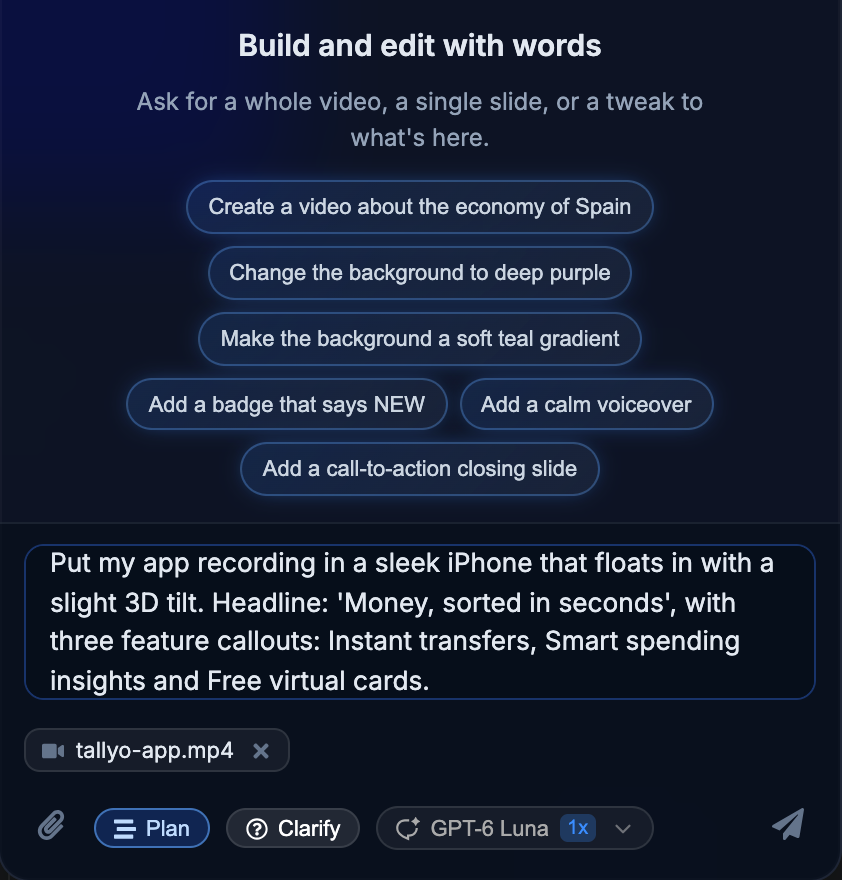
Put my app recording in a sleek iPhone that floats in with a slight 3D tilt. Headline: 'Money, sorted in seconds', with three feature callouts: Instant transfers, Smart spending insights and Free virtual cards.
2. SaaS product demo: a screencast on a MacBook
For feature announcements, onboarding emails and sales follow-ups. We attached a screencast of a project-management app: adding a task, dragging it across the board, and opening the analytics.
Show my product screencast on a silver MacBook that rises in and turns gently toward the viewer. Headline: 'Plan less. Ship more.' with three short steps beside it: Add a task, Drag it forward, Track progress. Keep the recording's sound off.
3. Dashboard overview: a screenshot floating in 3D
For investor updates, quarterly reviews and "this month in numbers" posts. One screenshot of a dashboard was enough.
Make my dashboard screenshot float in 3D on a dark stage: it swings in, then drifts slowly, with callouts popping in on Active users 48,210 (+12.4%), MRR $182.6k (+8.1%) and the weekly chart. Headline: 'Q3 at a glance'.
4. A video on a tablet: a café promo
Device mockups aren't only for software. Here, a coffee brand's ad plays on an iPad, ready for in-store screens or a social post.
Play our new coffee ad on an iPad resting at a slight angle on a warm, softly lit café counter. Headline: 'Brewed for slow mornings', with a small caption 'Now playing in all our stores'.
5. Website launch: a scroll-through in a browser window
For a redesign announcement, a portfolio piece or a "we're live" post. We recorded a scroll through our own homepage.
Show our new homepage scroll-through inside a clean browser window that slides up into view, with three callouts popping in: 'AI-powered animation', 'Works right in your browser' and 'Free beta access'. Light, airy background.
6. Agency portfolio: two products, two devices, one scene
For studios and freelancers showing client work, or for any product with a web app and a mobile app. We attached both recordings to one message.
Show our recent client work together: the Stackly web app on a MacBook and the Tallyo mobile app on an iPhone in front of it, slightly overlapping, entering one after the other. Headline: 'Northlight Studio · Selected work'.
How to Create an App Showcase Video in Animax
1. Capture your screen
Use whatever you already have:
- iPhone: Control Center → Screen Recording.
- Android: Quick Settings → Screen record.
- Mac: press Shift + Command + 5.
- Windows: Snipping Tool → Record.
- Any tool you like: Loom, OBS or a screenshot.
Keep it short and focused on one flow. Ten to twenty seconds is plenty for a showcase scene.
2. Attach it and describe the scene
Open the chat in Animax, attach your recording or screenshot with the paperclip, and describe what you want: the device, how it moves, the headline, and what the callouts should say.
3. Review the plan and approve it
Animax shows a short plan with its cost before anything runs. A showcase scene is a single step and costs about 2 credits with the default model.
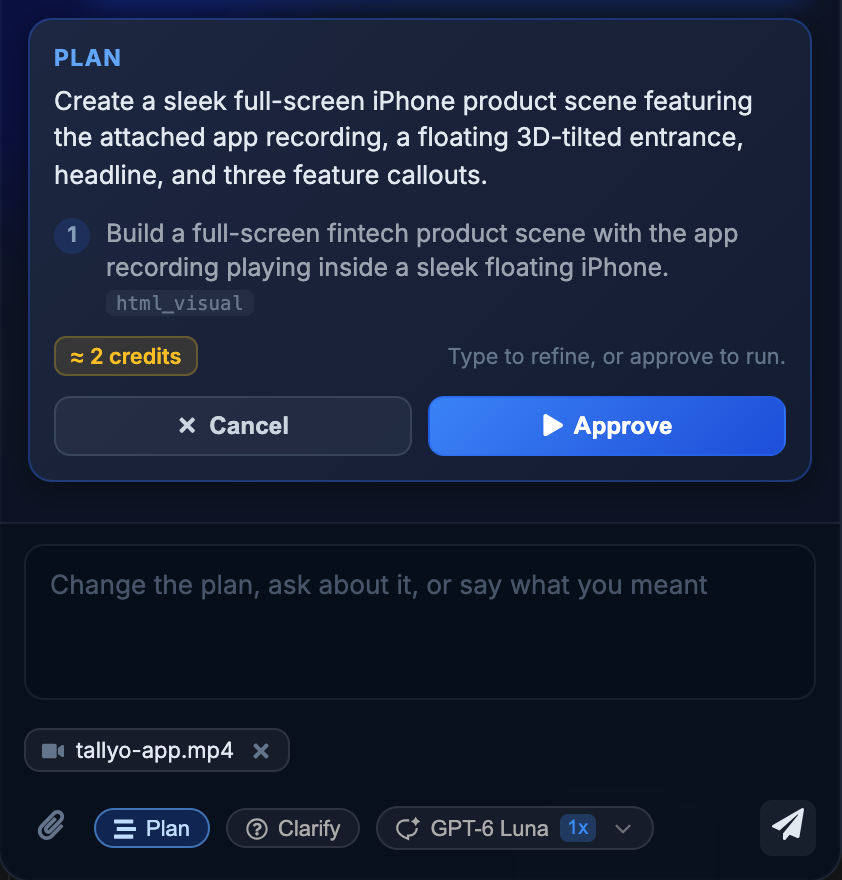
If the Clarify toggle is on, Animax first asks a few questions about music, voiceover and length. For a single showcase scene, you can switch Clarify off and go straight to the plan.
4. Watch it, then refine in plain language
The scene lands on your timeline in under a minute, with the recording playing inside the device.
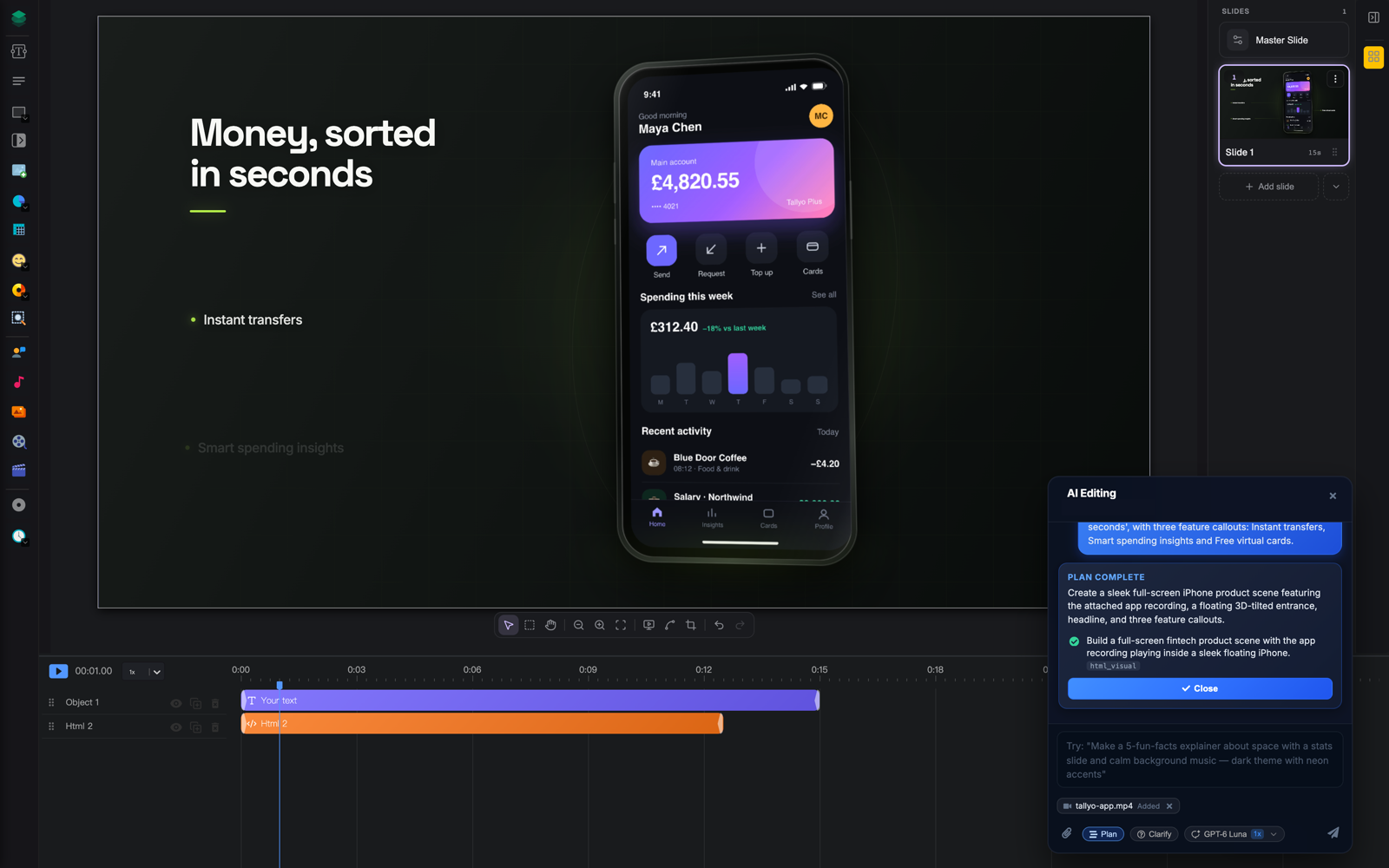
Not quite right? Just ask, for example "make the phone bigger", "move the callouts to the left", "add a fourth callout for Apple Pay" or "start the recording after the phone lands". To change the sound, select the scene and use the Muted switch in its panel.
5. Add the rest and export
Add a voiceover, background music or captions from the same chat, add more slides, and render your video.
Tips for Great Results
- Match the device to the recording. Portrait recordings belong in a phone. Landscape screencasts belong in a laptop, a tablet or a browser window.
- Name the exact words and numbers. Callouts and headlines use what you write, so "Active users 48,210 (+12.4%)" beats "show the user growth".
- Describe the motion. "Floats in with a slight tilt", "swings in from a steep angle" and "turns toward the viewer" all give noticeably different scenes.
- Say when the recording should start. By default it begins once the device has entered. Ask for a different timing if you need it.
- Ask for the sound if you need it. Recordings play muted by default. If the audio matters, say so in your prompt.
- Describe the whole scene in one message. Device, headline, callouts and background together give Animax everything it needs to design one coherent scene.
Luna or Sol: Which AI Model Should You Use?
Animax lets you pick the AI model that designs your scenes. We gave the same prompt and the same file to our default model, GPT-6 Luna, and to the more advanced GPT-6 Sol. In each video below, Luna is on the left and Sol is on the right.
A dashboard screenshot floating in 3D
A product demo on a MacBook
A homepage screenshot in a browser window
A brand video on an iPad
Sol tends to produce bolder layouts, with bigger and more readable callouts and a stronger sense of depth. Luna gets you most of the way at a third of the price.
| GPT-6 Luna | GPT-6 Sol | |
|---|---|---|
| Credits per showcase scene | about 2 | about 6 |
| Best for | Drafts, iterations, most everyday scenes | Hero scenes, text-heavy callouts, final versions |
A good approach is to iterate on Luna and switch to Sol for the version you publish. You can change the model at any time from the chat.
Who It's For
- SaaS marketing teams: feature launches, changelog videos and landing-page heroes, made from a recording you already have.
- App developers: App Store and Google Play previews, launch posts and short ads.
- Agencies and freelancers: portfolio reels that show client work on real devices.
- Sales teams: short demo clips for follow-up emails, one per feature.
- Founders: investor updates and "this quarter in numbers" posts built from a dashboard screenshot.
- Shops, cafés and hospitality brands: a promo playing on a tablet or a screen, ready for social media or in-store displays.
Compared With the Usual Way
| Device templates in After Effects | Animax | |
|---|---|---|
| Time to a first version | Hours | About a minute |
| Skills needed | Motion design | Describing what you want |
| New recording, same scene | Re-import, re-time, re-render | Attach it and ask |
| Headlines and callouts | Animated by hand | Written and animated for you |
| Changes after review | Back to the timeline | A chat message |
Frequently Asked Questions
Which files can I use?
Screenshots and images in PNG, JPG, WebP or GIF up to 10 MB, and screen recordings in MP4, MOV, WebM or M4V up to 50 MB. You can attach up to five files per message, and use up to four in a single scene.
How long can the recording be?
The scene lasts as long as your recording, up to two minutes. For showcase scenes, 10 to 30 seconds usually works best.
Will Animax change how my app looks?
No. Your screenshot or recording appears exactly as you captured it. Animax designs everything around it: the device, the background, the text and the motion.
Does the recording's sound play?
Recordings play muted by default, since most showcase videos have music or a voiceover on top. Ask for the sound in your prompt, or turn it on later with the Muted switch in the scene's panel.
Can I use several recordings in one scene?
Yes. Attach them together and say which one goes where, for example "the web app on the laptop and the mobile app on the phone".
Can I edit the scene afterwards?
Yes. Ask for changes in the chat, from the headline wording to the device's motion, or fine-tune the scene's code in its panel if you like working that way.
What does it cost?
A showcase scene costs about 2 credits with GPT-6 Luna and about 6 with GPT-6 Sol. Attaching your files costs no credits.
Show the Real Product, Not a Stock Mockup
Your screen recordings already show what your product does. Animax turns them into the kind of device showcase that used to take a motion designer, in about a minute, and you can keep refining it in plain language.
Record a flow, attach it, and describe the scene. Create your free Animax account and make your first app showcase video today.
Get Animax updates
New features, improvements, and fixes — delivered straight to your inbox. No spam, unsubscribe any time.